
Introduction
Switching iCloud accounts on your iPhone can be necessary for managing different aspects of your life, whether personal, professional, or among family members sharing a device. Knowing how to switch accounts smoothly enhances your device’s utility and data accessibility. This guide provides a detailed walkthrough to ensure you can log into another iCloud account on your iPhone without losing invaluable data.
Understanding iCloud and Its Importance
iCloud is a pivotal part of how Apple devices synchronize and store data. By logging into iCloud, your data—like photos, contacts, and files—remains consistent across all Apple devices you use.
What is iCloud?
iCloud is Apple’s cloud storage service that provides a seamless experience by syncing data across your devices, including iPhones, iPads, and Macs. It serves as a central hub for accessing your files and keeps your digital life organized and backed up.
The Role of iCloud in Your iPhone Experience
Your iPhone heavily relies on iCloud for backing up data, keeping your digital life synchronized, and allowing uninterrupted access to your information anytime, anywhere. It also provides crucial backups to ensure data recovery if your device is lost or replaced.
To ensure a smooth transition to a new iCloud account, it’s essential to prepare your iPhone adequately.
Preparing Your iPhone to Switch iCloud Accounts
Before logging into a new iCloud account, safeguarding your current data is essential to prevent any loss during the transition.
Backing Up Your Current Data
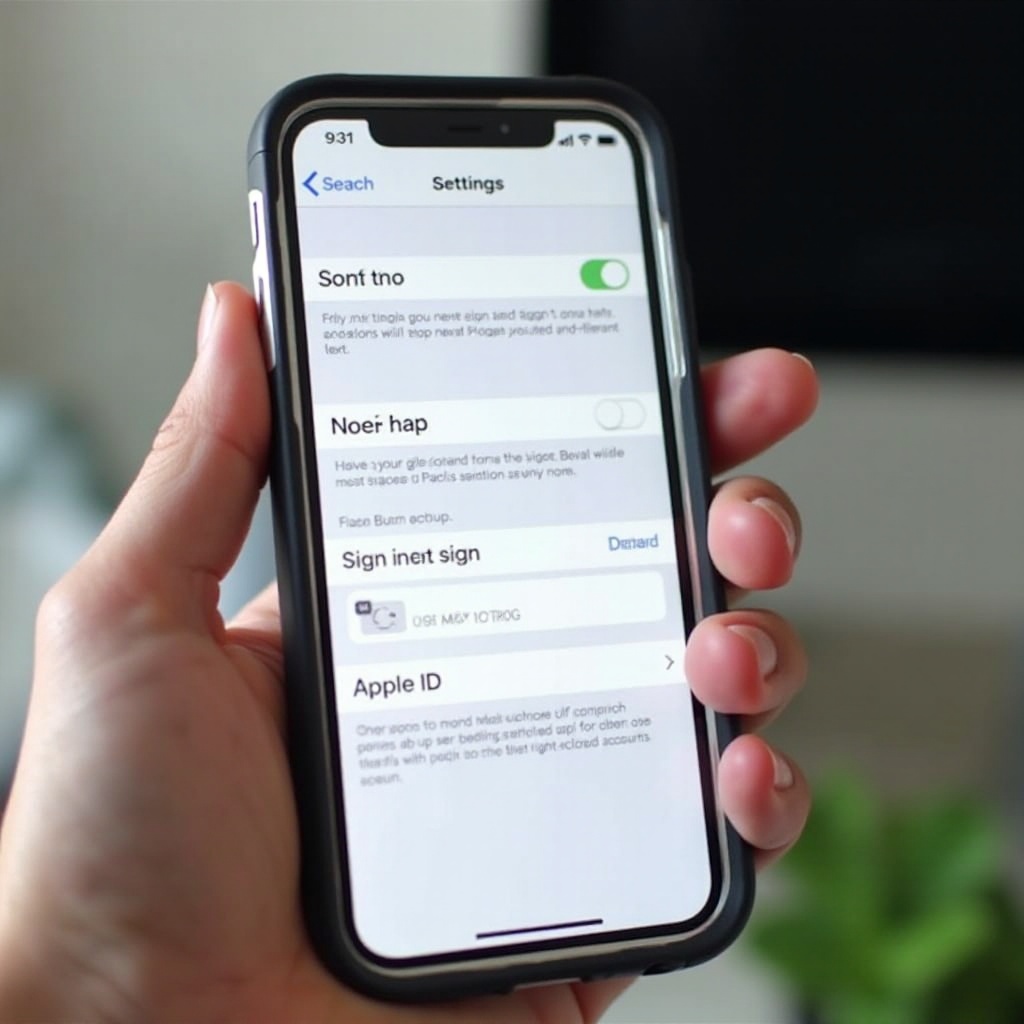
- Open the Settings app on your iPhone.
- Tap your name at the top and select iCloud.
- Scroll down, tap iCloud Backup, and choose ‘Back Up Now’ to ensure all current data is securely stored.
Once your data is backed up, you can confidently proceed to sign out of the current iCloud account, knowing your information is safe.
Signing Out of the Current iCloud Account
- Go to Settings and tap your name.
- Scroll down and tap Sign Out.
- Enter your Apple ID password and tap Turn Off.
- Choose the data you want to keep on your device, then tap Sign Out again to confirm.
With your iPhone prepared, you are ready to log into the new iCloud account.
How to Log into Another iCloud Account on Your iPhone
Switching to a different iCloud account involves accessing your iPhone’s settings to manage your accounts effectively.
Accessing Settings for Account Management
- Go back to the main Settings page.
- Tap ‘Sign in to your iPhone’ at the top of the page.
Entering New Account Details
- Input the Apple ID and password for the new iCloud account.
- Follow on-screen instructions to complete the sign-in process.
Verifying iCloud Services and Synchronization
Make sure to toggle on all the necessary iCloud services like Photos and Contacts. This ensures that your data synchronizes correctly across the devices associated with the new account.
After successfully logging into a new account, it’s essential to manage your data to ensure alignment across different services on your device.
Managing Data When Switching Accounts
Effective data management upon switching accounts prevents data misalignment and ensures a seamless user experience.
Handling App-Specific Data
- Review app-specific settings to align them with the new iCloud account.
- Some apps may require logging in again or adjusting data storage preferences.
Monitoring Synchronization Across Accounts
- Regularly check settings to ensure that all iCloud services are syncing as expected.
- Address any discrepancies immediately by adjusting app settings or resyncing data.
Despite taking all precautions, some issues might crop up during an account switch. Here’s how you can troubleshoot these problems efficiently.
Troubleshooting Common Issues During iCloud Switch
Switching iCloud accounts can sometimes lead to unexpected complications. Here are common challenges and solutions.
Password and Authentication Challenges
- Double-check that passwords are entered correctly or utilize Apple’s password recovery.
- For two-factor authentication issues, ensure access to trusted devices or recovery keys.
Resolving Synchronization Errors
- Refresh iCloud services by signing out and signing back in.
- Restart your device to reestablish connections.
Contacting Apple Support
For unresolved issues:
– Visit the Apple Support website or use the support app for assistance.
– Provide as much information as possible for a faster resolution.
Finally, maintaining the security of your iCloud accounts is paramount as you juggle multiple logins.
Enhancing Security While Using Multiple iCloud Accounts
Maintaining high-security standards ensures that your account information remains protected across all platforms.
Implementing Strong Passwords
- Use unique and complex passwords for your iCloud accounts.
- Consider using a password manager for secure and easy password handling.
Enabling Two-Factor Authentication
- Add an extra layer of security to your accounts by enabling two-factor authentication.
- Set this up through Apple’s ID website or directly through your device settings.
Conclusion
Navigating between different iCloud accounts on your iPhone does not have to be daunting. With careful preparation and the strategies discussed here, you can manage multiple accounts conveniently while ensuring your data’s safety and synchronization. Keep security measures at the forefront and troubleshoot any issues promptly to maintain a seamless digital life.
Frequently Asked Questions
Can I use two iCloud accounts on the same iPhone?
Yes, you can use multiple iCloud accounts by switching between them as needed.
Will switching iCloud accounts erase my data?
Switching accounts does not erase data. Ensure you back up your data to iCloud to prevent any potential loss.
How do I recover my iCloud password if I’ve forgotten it?
Visit the Apple ID website, select ‘Forgot Apple ID or password,’ and follow the prompts to reset your password.